Set up the room
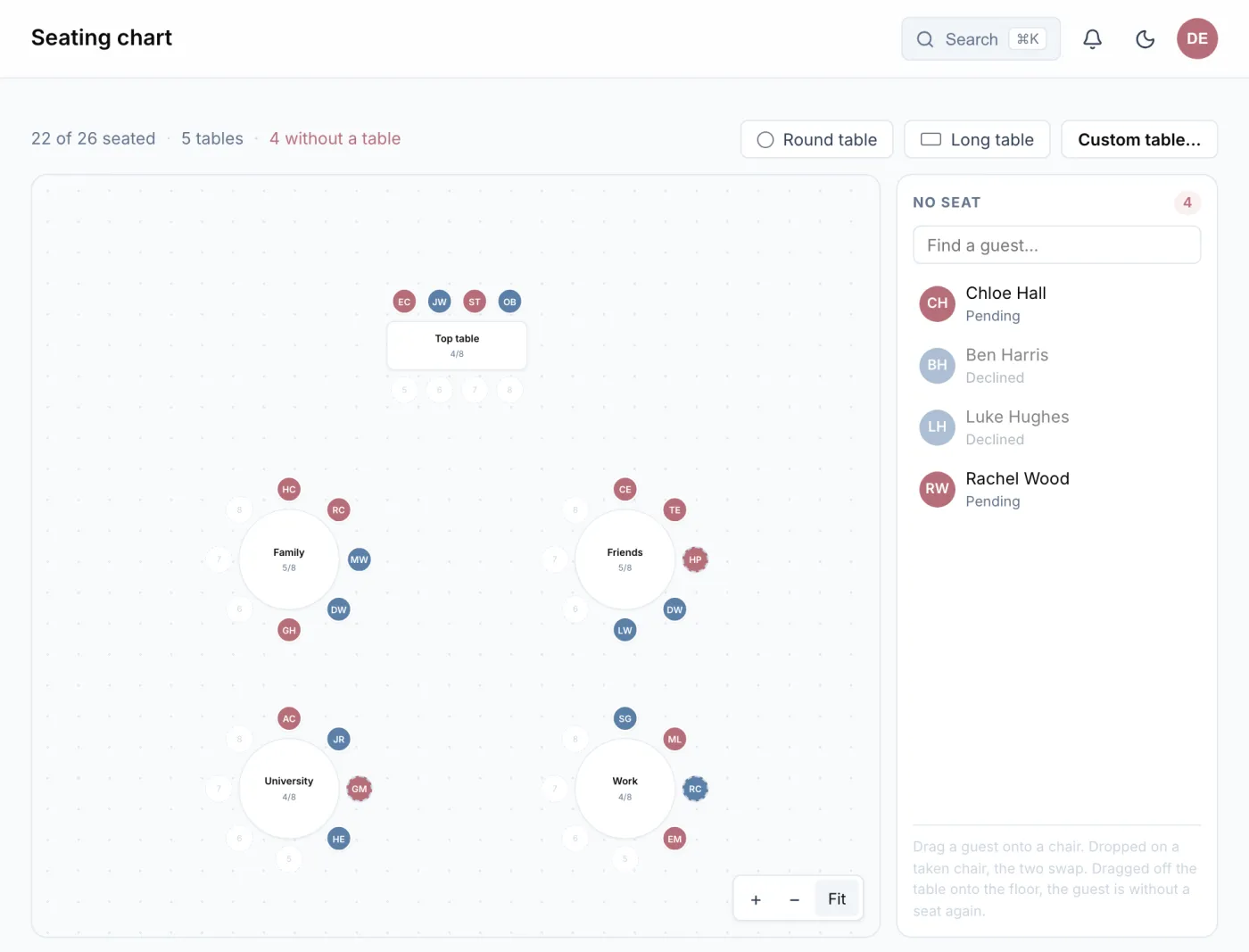
One click puts a round table or a long table in the room. For anything else you add a custom table with a name and a number of seats. You move the tables to where they will stand, and long tables can be rotated. So you can see while planning who sits close to the top table and which tables are next to each other.
Drag guests to their seats
Beside the plan is everyone who has no seat yet. Drag a guest onto a chair and they are seated. Drag them onto a taken chair and the two swap places. Drag them away from the table and they are without a seat again.
Households from the guest list appear as a group. You seat a family together at one table in a single step, rather than dragging four people one by one.
Because the seating chart works with the guest list, it does not go out of date. Colours show who belongs to the bride’s side and who to the groom’s, and whoever has not replied or has declined is marked on the plan. Whoever accepts later turns up among the guests without a seat.
Print the seating plan
The print view turns the plan into what the venue and the caterer need:
- the floor plan with every table,
- a list per table,
- “Who sits where” in alphabetical order, to put up at the entrance,
- the list for the kitchen with menus and allergies per table.
Each part starts on a page of its own. With “Save as PDF” in the print dialog you can send it all by email. The count is either everyone who has not declined or only those who have accepted, depending on whether you need final numbers yet.
Plan on the laptop, look it up on the phone
Rearranging is done on the big screen, where a room of twelve tables fits. On the phone the plan is there to look at, at the meeting with the venue for example. And on the wedding day, the check-in shows the table beside every name, the second question every guest asks at the door.